
Steam Voice Changer Compared: Tools, Latency, and Setup
steam voice changervoice changer for steamreal-time voice changersteam chat toolsgaming voice changer
18 min read
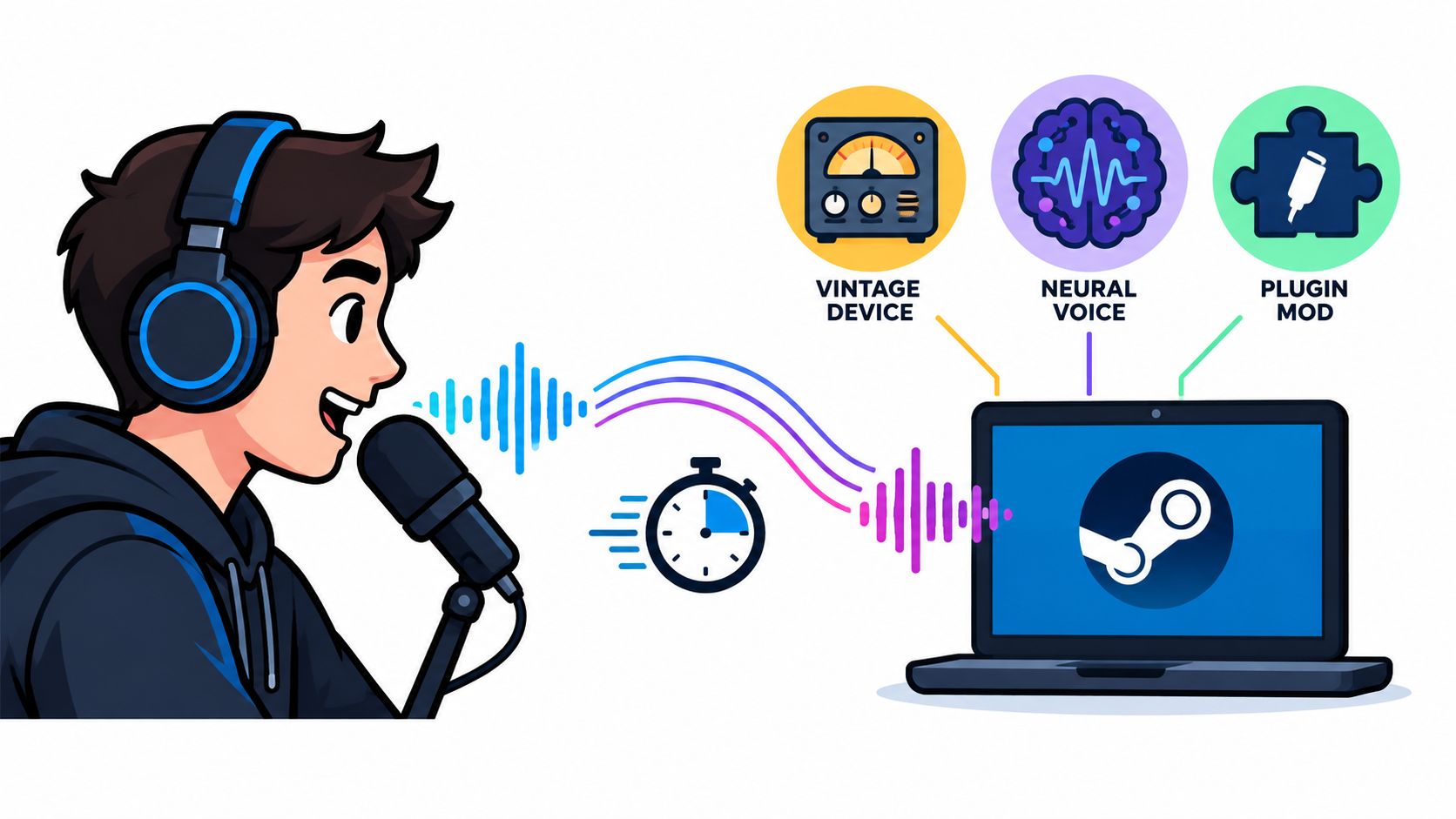
Most Steam voice changer advice is too shallow to be useful. It tells you where to click, names a few apps, and pretends the job is done once Steam sees a virtual microphone.
That's not a test.
The test happens when your squad is already in a match, your GPU is loaded, Steam grabs the wrong input, and your “fun little voice filter” turns comms into mush. A Steam voice changer either survives live play or it becomes one more background app you uninstall after a bad night.
It usually starts with confusion, not comedy.
You're in a ranked match. One teammate makes a callout, then the next sentence comes through in a helium squeak. Nobody knows if he fat-fingered a hotkey, if Windows flipped devices, or if the voice changer just had a seizure under load. For the next few seconds, comms are dead. Two players talk over each other. The clutch is gone.
That's the moment most buying guides ignore.
A Steam voice changer isn't judged by how many presets it ships with. It's judged by whether it keeps your mic usable when the match gets busy, whether it recovers fast when routing breaks, and whether the people hearing you still know who they're talking to. That matters a lot more than “celebrity voices” or a meme soundboard.
Practical rule: If a voice changer makes your team hesitate for even one extra beat during a fight, it's already too expensive.
I've seen the same pattern across Steam chat, Discord, and in-game VOIP. Lightweight tools can sound fake but stay stable. AI tools can sound better but fall apart when the system gets stressed. And some setups work perfectly in a desktop test, then fail the second a game, Steam Overlay, and a virtual device all compete for the same audio path.
The useful question isn't “Does this work with Steam?” Almost all of them can be made to work. The useful question is whether it still works when something goes sideways.
A Steam voice changer works at the Windows audio layer first, not inside Steam itself. That distinction matters because it explains both the magic and the headaches.
The software takes your microphone input, processes it, and then exposes the changed result as a virtual microphone or routed input device. Steam then uses that routed device as its voice input.
In plain English, the chain looks like this:
That's why setup problems are almost always routing problems. If Steam listens to your raw mic instead of the changer's virtual input, nothing happens. If Windows changes defaults after a restart, your setup breaks even if the app itself is fine.
A properly configured Steam voice changer can affect:
What it won't do is just as important.
Steam's own support warns that “converters, extensions, or intermediary devices” can contribute to voice chat connection and quality issues, which is exactly why setup that looks fine at launch can fail during real use in Steam voice troubleshooting guidance.
Marketing pages talk about immersion, character voices, and identity. Fine. But none of that matters if the app can't hand off clean audio to Steam every single time.
So evaluate every tool through one lens. Can it take your mic, process it, and pass it to Steam without adding ugly delay, random resets, or routing drama? If the answer is no, the feature list is irrelevant.
Steam voice changers fall into three camps, and lumping them into one roundup hides the part that matters under live load. Some tools are built for stable comms. Some are built for novelty. Some are really DIY audio chains that work right up until Windows or Steam decides to rename a device mid-session.
| Family | Examples | Processing Model | Typical Latency | CPU/GPU Load | Cost Model | Biggest Weakness |
|---|---|---|---|---|---|---|
| Legacy desktop changers | MorphVOX, Clownfish, Voxal | Pitch, formant, classic DSP effects | Lower than AI classes in typical use | Usually light | Often one-time purchase or free | Sounds synthetic fast |
| Real-time AI changers | Voicemod, Voice.ai, RVC-style tools | Neural or AI-assisted voice conversion | Wider spread, often higher under load | Heavier, sometimes GPU-dependent | Free tier, subscription, or hybrid | Spikes and instability during gaming |
| Plugin and routing layers | OBS chains, virtual cable pipelines, per-app hooks | Depends on host app and routing stack | Varies a lot | Varies a lot | Usually pieced together | Fragile after updates |
Start here if your priority is hearing callouts on time and getting yours out without a half-second hitch. Legacy changers are old, but old is good when the job is real-time voice in games.
MorphVOX is the clearest example. MorphVOX Pro 4 shows a Steam release date of 13 February 2014, and MorphVOX Pro 5 launched on 10 February 2021 on the MorphVOX Pro 5 Steam store page. MorphVOX Pro 5 is listed under Steam's Audio Production category and is currently priced at $39.99. SteamDB records a lowest historical price of $15.99 on 27 November 2024, a 60% discount from list price.
The catch is obvious. These tools rarely fool anyone for long. They give you altered pitch, character voices, and effects, but they usually sound processed rather than natural. For ranked play, that trade is fine. Stable and clear beats impressive and late.
AI changers chase realism, and that realism costs you latency headroom and stability. They are the category most likely to sound great in a test clip, then start stuttering once the game, Discord, Steam, and your browser are all competing for CPU time.
Steam listings show how fast this part of the market shifts. Voicemod first appeared on SteamDB on 25 January 2018, Voice.ai Voice Changer first appeared on 20 July 2022, and Simple Voice Changer shows a Steam release date of 7 August 2026, which is a future-dated listing and should be treated as a projected catalog milestone from the Simple Voice Changer Steam page. That same source notes that Voicemod is “no longer available on the Steam store.” Churn like that matters because support, updates, and driver behavior can change faster than player guides do.
This family also raises the identity question faster than the older tools do. A goofy robot preset is one thing. A near-natural AI voice that sounds like a different person changes the social contract in team chat. If you want a clearer technical view of serious voice system design, how Nexus Vox works is a useful reference point. It is not a Steam tool, but it shows the engineering priorities behind real-time voice systems that care about responsiveness and flow instead of preset spam.
This is the tinkerer lane.
OBS filters, virtual cables, browser processors, VST hosts, and app-specific hooks can produce the best custom results in the hands of someone who already understands Windows audio. They also create the longest chain of failure points. One driver update, one default-device reset, one sample-rate mismatch, and your mic path breaks five minutes before pistol round.
Use this family if you want control and you are willing to babysit it. Skip it if you just want Steam chat to work every night with minimal drama.
Latency is where most voice changers get exposed. They can sound amazing in a quiet test clip and still be awful in a live match.
| Tool Class | Added Latency (ms) | CPU Load (mid-range i5) | GPU Required | Best Steam Use Case |
|---|---|---|---|---|
| Lightweight classic changer | About 15 to 40 in tested examples | Low | No | Ranked play and regular team comms |
| Optimized real-time changer | About 20 to 50 when tuned | Moderate | Not always | Casual Steam voice chat and mixed use |
| Heavier AI conversion | About 40 to 80 in tested setups, worse when poorly tuned | Higher | Often helpful or necessary | Roleplay, content creation, novelty use |
| Poorly optimized AI chain | About 90 to 160 or more | Can spike badly | Often yes | Avoid for live competitive play |
For Steam voice chat, about 20 to 50 ms of processing latency is typical for optimized real-time changers, while poorly optimized AI converters can hit 90 to 160 ms or more, according to Voxbooster's Steam voice changer latency discussion. The same source says the practical target for speech that still feels natural under full system load is roughly under 35 ms. Above that, teammates start noticing the lag.
That lines up with what players hear, not just what benchmarks report. Below that line, people interrupt each other less. Above it, voice becomes sticky. Calls arrive late, replies overlap, and your team starts doing that awkward half-duplex rhythm where nobody knows whose turn it is to talk.
If you're playing anything where timing matters, treat latency budget like ping. You can survive a little. You can't pretend it doesn't exist.
Independent benchmark summaries show a big spread between approaches in these gaming-focused latency comparisons. One measured set reported 15 to 25 ms for MorphVOX Pro, 20 to 30 ms for Voicemod, 25 to 40 ms for Clownfish, and 40 to 80 ms for real-time RVC setups. The same source reports CPU impact ranging from under 1% for lightweight tools to about 5 to 10% GPU load for AI-based voice conversion, with RTX 4090 GPU acceleration landing around 40 to 55 ms end-to-end versus 310 to 360 ms on a CPU-only Ryzen 7 5800X.
That's the difference between “usable in match” and “fun tech demo.”
If you want a practical look at character-focused real-time voice work outside pure PvP use, this real-time NPC dialogue guide is useful because it frames voice conversion around responsiveness and role consistency instead of novelty. And if you need the broader technical baseline, this overview of what voice synthesis is helps separate synthesis from conversion, which many gamers still confuse.
Most setup failures come from one dumb problem. Windows, Steam, and the voice changer all think they're in charge.
Follow this order and you'll avoid most of the pain:
This is the process skipped when rushing straight to presets.
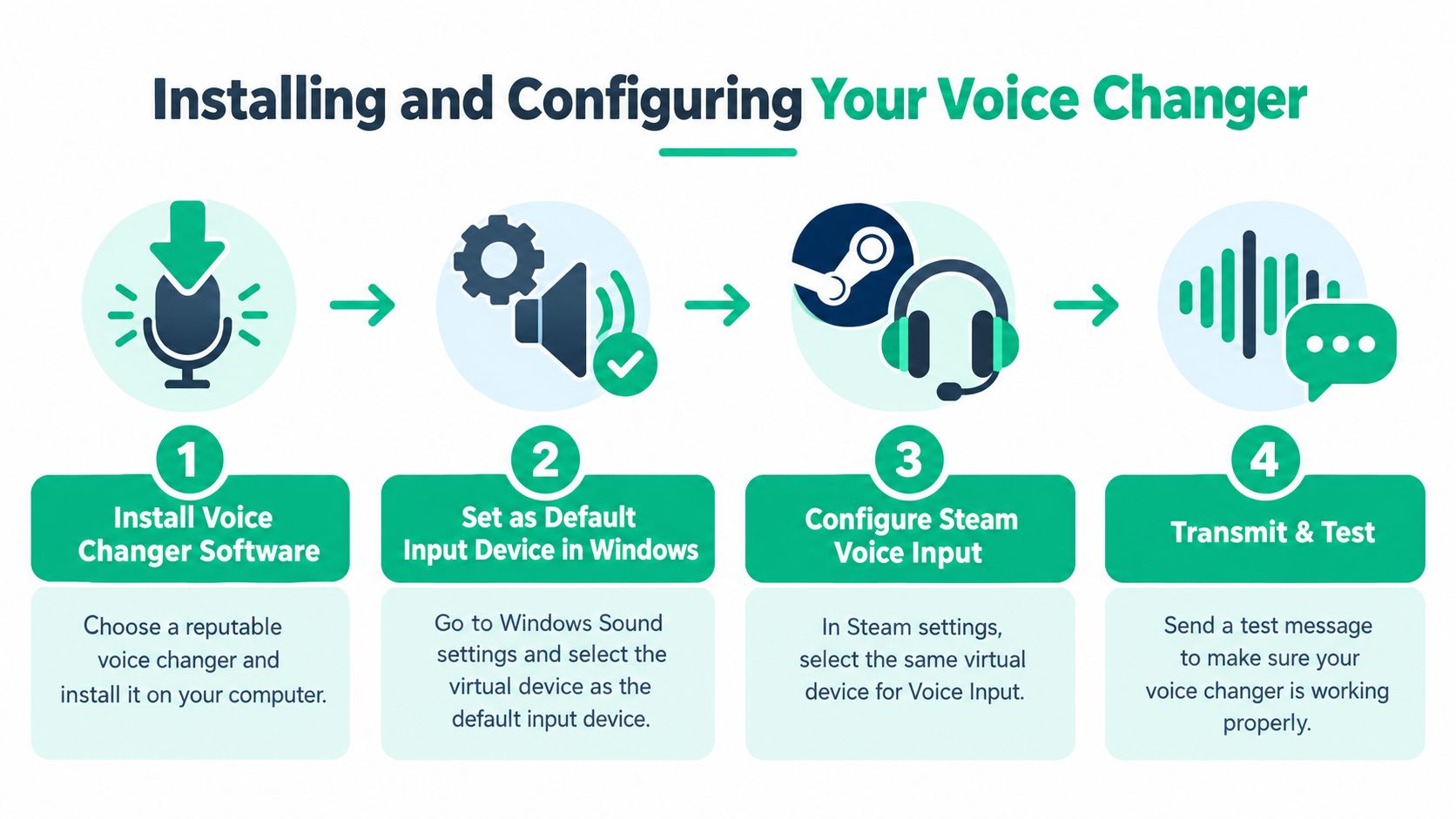
The biggest mess is device rebinding. After a reboot or hardware reconnect, Steam may point back to your raw microphone while the changer still believes it owns the chain. Then you talk, hear nothing changed, and assume the app is broken.
Check these trouble spots:
Some tools expose a clean virtual microphone inside the app. Others rely on a separate cable or routing utility. Built-in virtual mics are usually easier for normal Steam users. Virtual cable chains are more flexible, but they add another failure point.
Setup rule: The more separate audio devices your chain depends on, the more likely one of them will disappear after an update.
If you want a consumer-level walkthrough of live voice alteration workflows beyond Steam alone, this guide on a voice change during call app is a helpful reference because it focuses on the same routing problem users hit across voice platforms.
Voice changers don't fail randomly. They fail in patterns. Once you know the pattern, recovery gets faster.
A quick checklist helps more than a long rant when a round is already starting.
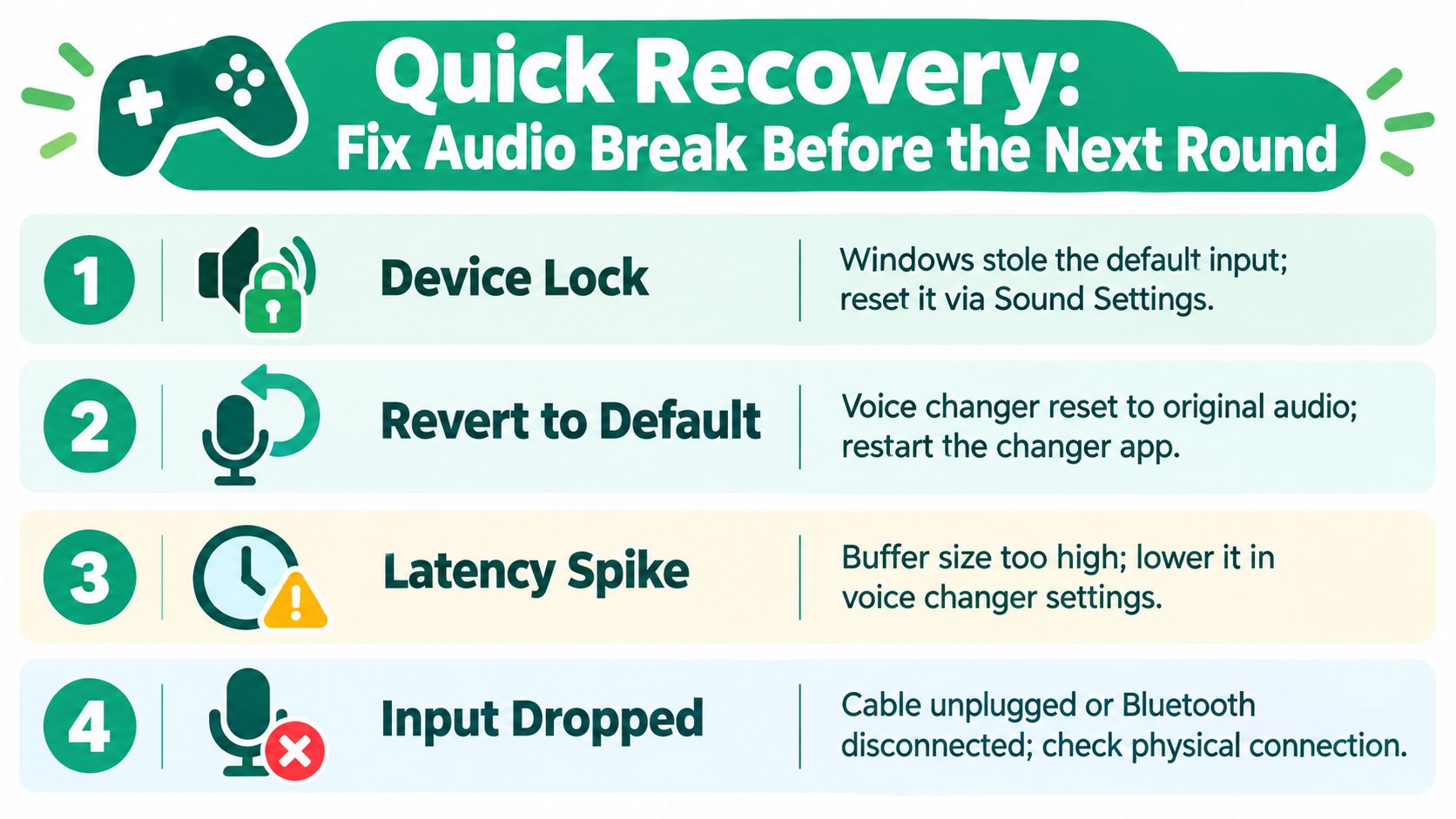
This is the classic one. Windows steals the default input after sleep, a driver hiccup, or a USB reconnect. Your changer still runs, but Steam is now listening to the wrong mic.
Fast triage:
You changed voices, but the old profile still clings to the signal. Or you turned the effect off and teammates still hear robot goblin nonsense. That usually means the changer's processing state didn't reset cleanly.
Do this:
That's often quicker than hunting through menus.
Here's a visual walkthrough if you want a second screen reference while troubleshooting:
Steam sometimes falls back. You think you're transmitting through the changer, but your hardware mic is live, or nothing is live. Echo is the nastier cousin. That happens when your changed output bleeds back into the input chain.
Watch for these signs:
The fix is brutal but honest. If you can't identify the break inside a minute, ditch the effect, return to raw mic, and save the match. Fancy comms are never worth losing basic intelligibility.
The technical side is only half the story. The social side is getting messy fast.
AI voice tools aren't just pitch shifters anymore. Commentary on online identity notes that players increasingly use real-time voice transformation to shape identity and social dynamics, not just for laughs, as discussed in 80 Level's coverage of real-time voice transformation and player identity. That changes the etiquette completely.
Stable persona use is usually easy to read. A streamer uses one recognizable modified voice. A roleplayer uses character presets in a co-op session. A shy player wants some distance from their real voice in casual chat. None of that bothers me if people aren't being misled about the basics of the interaction.
Say it up front. “I'm using a voice changer tonight.” Problem mostly solved.
Ranked and high-stress lobbies are different. If you're changing your voice to conceal age, gender, identity, or intent in a way that manipulates team trust, that's not harmless anymore. If you're swapping voices to grief, bait reactions, impersonate someone, or dodge accountability, you're the problem, not the tool.
My baseline is simple:
In competitive chat, the standard isn't “Can I do this?” It's “Would my team make the same decisions if they knew what I was doing?”
Steam voice chat isn't where a nuanced moderation system is typically expected. That means a lot of voice abuse issues land on the game's own reporting systems, private group norms, or the host who has to shut it down manually.
That's why disclosure matters more than people think. It reduces panic, avoids misunderstanding, and makes your setup look intentional instead of shady. The best use of a voice changer is controlled identity. The worst use is plausible deniability.
Don't shop by hype. Shop by what kind of session you run.
| Player Profile | Recommended Category | Latency Target | Key Feature Needed |
|---|---|---|---|
| Casual co-op player | Legacy desktop changer | Lower is better, without chasing realism | Simple presets and easy recovery |
| Competitive FPS or MOBA player | Low-latency real-time changer or minimal DSP tool | Stay below the highest tolerable live-chat range covered earlier | Stability under load |
| Roleplayer or TTRPG group | AI changer or preset-heavy classic tool | Flexible, less strict than ranked play | Fast profile switching |
| Streamer using Steam plus OBS | Tool with separate routing options | Consistent sync over long sessions | Clean split between stream and chat feeds |
| Scripted content creator | Heavier AI tool | Less urgent in non-live production | Voice quality and creative range |
If you play ranked and care about clean callouts, pick the simplest tool that keeps speech natural under load. That usually means classic processing or a very restrained real-time changer. Don't bring a GPU-hungry novelty rig into a match where timing matters.
If you're doing co-op, social lobbies, or roleplay, go broader. AI tools make more sense there because a little delay hurts less and character range matters more. Streamers need a setup with clear routing discipline, not just a fun preset browser.
Mac users are a separate headache, and if that's your lane, this guide to a voice converter for Mac is worth checking because platform limitations change the whole decision.
My one-line rule is simple. If latency under load matters, choose the least complicated voice changer that stays usable in live comms. If expression matters more than instant response, the heavier AI tier is worth the overhead.
podcast-generator.ai builds tools for people who want to turn technical topics like this into something they can listen to. If you need recurring audio briefings or research-backed podcast-style explainers on topics you follow, visit podcast-generator.ai and get them in a private audio feed.
Get a personalized podcast series on the topics you care about, researched fresh and delivered on your schedule.
Get Started Now